
How to Build a WooCommerce Website: A Beginner's Step-by-Step Guide (2026)
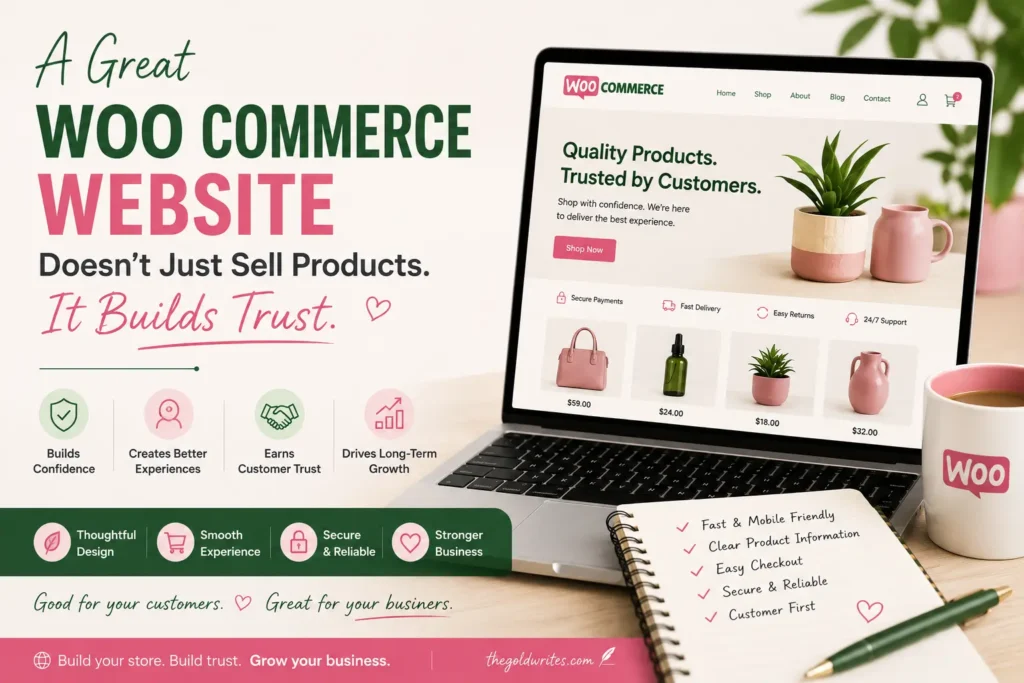
How to Build a WooCommerce Website?
If you’re planning to sell products online, one of the best decisions you can make is building your store with WooCommerce.
It’s flexible, beginner-friendly, and gives you complete control over your online business. Whether you’re starting a small boutique, selling handmade products, or launching a large eCommerce brand, WooCommerce can grow with you.
When I built my first WooCommerce website, I thought the biggest challenge would be learning the technical side.
It wasn’t.
The real challenge was creating a website that customers trusted enough to buy from.
A successful online store isn’t just about attractive design or fancy features. It’s about making shopping easy, answering customers’ questions, and creating a smooth experience from the homepage to checkout.
In this guide, I’ll walk you through the process of creating a WooCommerce website from scratch.
Why Choose WooCommerce?
WooCommerce powers millions of online stores around the world because it’s:
Free to install
Highly customizable
SEO-friendly
Mobile responsive
Scalable for growing businesses
Supported by thousands of plugins and themes
Unlike many hosted eCommerce platforms, WooCommerce gives you complete ownership of your website and data.
Step 1: Register Your Domain Name
Your domain name is your business’s digital identity.
Choose one that is:
Short and memorable
Easy to spell
Relevant to your business
Simple to pronounce
For example:
yourbrand.com
shopyourbrand.com
thegoldwrites.com
Avoid numbers, hyphens, and overly complicated names.
Step 2: Choose Reliable Web Hosting
Your hosting provider affects your website’s:
Speed
Security
Uptime
Overall performance
Look for hosting that includes:
Free SSL certificate
Daily backups
One-click WordPress installation
Good customer support
Reliable hosting creates a better shopping experience and can positively impact your search rankings.
Step 3: Install WordPress
Most hosting companies allow you to install WordPress in just a few clicks.
Once installed:
Update WordPress
Remove sample content
Set your website title
Configure basic settings
Now you have the foundation for your online store.
Step 4: Install WooCommerce
Go to:
Plugins → Add New
Search for WooCommerce, then click:
Install → Activate
The setup wizard will guide you through:
Store location
Currency
Shipping
Business details
Product type
You can update these settings later as your business grows.
Step 5: Choose a Professional Theme
Your website should look clean and feel easy to navigate.
Choose a WooCommerce-compatible theme that is:
Fast-loading
Mobile-friendly
SEO optimized
Regularly updated
A simple design often performs better than one filled with unnecessary animations and clutter.
Remember, customers come to shop—not to admire your website’s effects.
Step 6: Add Your Products
Every product page should answer the questions a customer is likely to ask.
Include:
Product Title
Use clear, descriptive names.
Example:
Organic Cotton Baby Blanket
Product Description
Instead of only listing features, explain the benefits.
For example:
Rather than saying:
“Made from 100% cotton.”
Say:
“Made from soft, breathable cotton that’s gentle on your baby’s delicate skin.”
You’re helping customers understand why the product matters.
Product Images
Use:
High-resolution photos
Multiple angles
Lifestyle images
Consistent backgrounds
Quality visuals increase buyer confidence.
Step 7: Organize Your Store
Use categories and tags to make browsing easier.
Example categories:
Clothing
Home Décor
Beauty
Electronics
Accessories
The easier it is to find products, the longer visitors stay on your website.
Step 8: Configure Payment Methods
Offer payment options your customers already trust.
Depending on your region, you can enable:
Credit and Debit Cards
UPI
Net Banking
Wallets
Cash on Delivery
Always test the checkout process before launching your website.
Step 9: Configure Shipping
Set up:
Shipping zones
Delivery charges
Free shipping rules
Local pickup (if available)
Unexpected shipping costs are one of the biggest reasons customers abandon their carts.
Be transparent.
Step 10: Create Important Website Pages
Customers expect more than just product pages.
Make sure your website includes:
About Us
Contact
Privacy Policy
Refund Policy
Shipping Policy
Terms & Conditions
FAQ
These pages build trust and answer common customer concerns.
Step 11: Improve Your Website’s SEO
Even the most beautiful website won’t generate sales if people can’t find it.
Basic WooCommerce SEO includes:
Keyword-rich product titles
Optimized meta descriptions
Image alt text
Internal linking
Fast loading speed
Mobile responsiveness
Clean URLs
SEO is an ongoing process, but every small improvement helps your website become more visible in search results.
Step 12: Test Before You Launch
Before going live, browse your website like a customer.
Check:
Navigation
Product search
Shopping cart
Checkout process
Payment gateway
Mobile responsiveness
Contact forms
Email notifications
Fixing small issues now creates a smoother experience later.
Launch Your Store with Confidence
Congratulations!
Your WooCommerce website is ready.
But remember, launching your website isn’t the finish line.
It’s the beginning.
Continue improving your:
Product descriptions
SEO
Customer experience
Website speed
Marketing strategy
The most successful online stores evolve over time.
Common Mistakes to Avoid
Many beginners make the same mistakes.
Try to avoid:
Choosing slow hosting
Using too many plugins
Writing poor product descriptions
Ignoring SEO
Uploading low-quality images
Skipping mobile optimization
Forgetting to test checkout
Small improvements in these areas can significantly increase conversions.
Final Thoughts
Building a WooCommerce website may seem overwhelming at first, but it becomes much easier when you take it one step at a time.
Focus less on making your website perfect and more on making it useful.
A successful online store isn’t the one with the most features—it’s the one that makes shopping simple, builds trust, and provides a great customer experience.
If you’re planning to launch your first online store and need help with WooCommerce setup, SEO, content, or digital marketing, I’d be happy to help.
At The Goldwrites, I help businesses create websites that not only look professional but also attract visitors and convert them into customers.
Ready to build your online store? Let’s create something your customers will love.